Use your computer better/smoother/quicker
The meat of this post is a list of things you can do to become more effective at using your computer. You can skip down to the “Recommendations” section if you’re in a hurry.
Effective general computer use is a skill. You should consider spending some time/effort/cycles on improving, especially if you use your computer a lot for work and/or if you haven’t already tried many of the items on the list below.
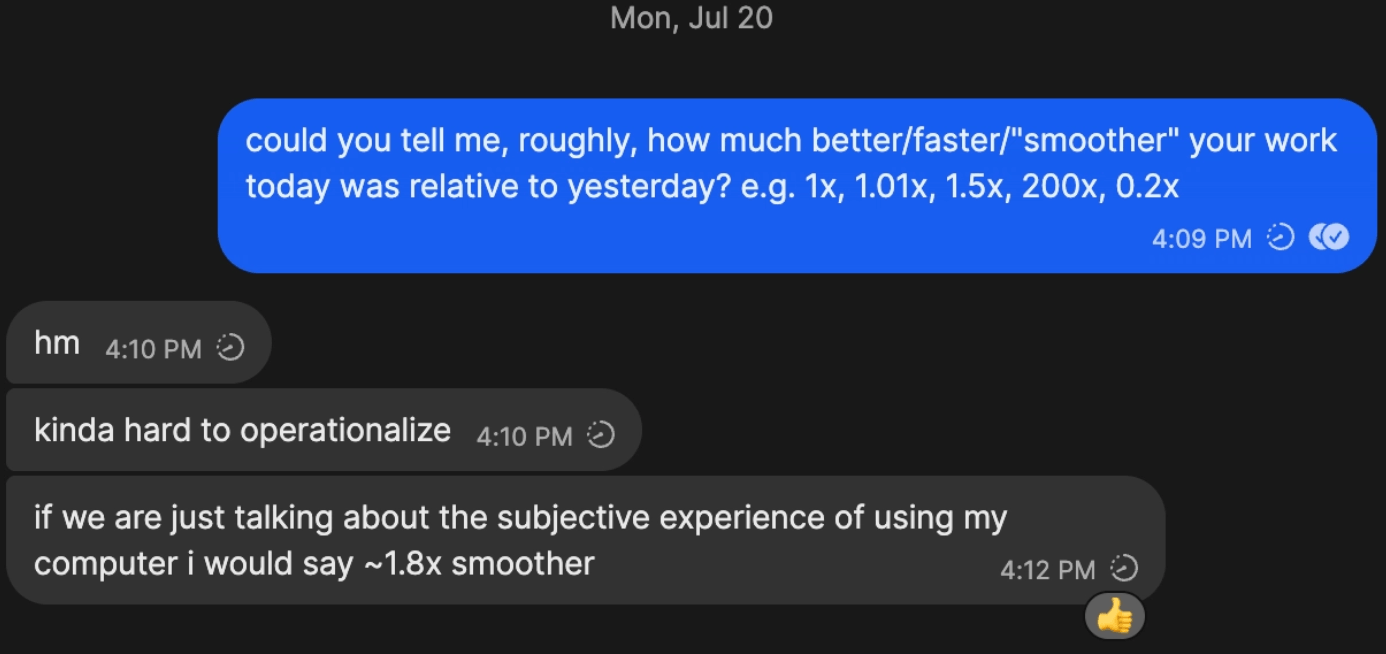
I’ll assume you’re broadly sold on the “why,” but in case you’re not: For some interventions, you might just save a lot amount of time (e.g. typing with your voice). For others, you’ll save only a few seconds at a time, but at extremely crucial moments (e.g. switching windows instantly while you’re in the zone). And for still others, you’ll unlock qualitatively new capabilities (e.g. letting your screen settings go brighter than Mac usually lets you).
Speed matters. You’re probably underrating how much faster you can get on the important things. This is one way: and I’ve noticed that even some highly productive friends of mine get huge benefits from targeted interventions here.
Prioritizing interventions
You should act on the interventions best fit for you. Since that differs a lot from person to person, it’s hard for me to give recommendations in the abstract. Instead, I recommend that you:
Look where your working memory is straining
I’ve found that the interventions with the highest leverage improve your ability to act in moments where your working memory is pushed to its limit. This is true even when it saves you only a moment or two — not because those moments add up (they probably won’t), but because preserving slots in your working memory for other items in those moments where your working memory is strained is outrageously beneficial.
Some examples:
- Instantly switching between workspaces (“four finger swipe”) instead of the default 0.5s delay.
- Making your display size a larger resolution, so that you can fit more windows on a given screen at once (instead of swapping back and forth across screens).
- Whenever you can, use keyboard shortcuts. They’re generally nearly instantaneous, especially relative to moving your mouse and clicking.
Again, these are obviously never going to add up to any substantive amount of time — but your time is [not homogeneously valuable], so you should be willing to optimize heavily for the narrow, very-specific moments that are most valuable.
So, in order to find interventions that will be most helpful for you, try to notice areas of your workflow in which your working memory is consistently strained, and find any elements that are “annoyingly” taking up room. Then, see if some UX solution can resolve the problem instead.
Get the flywheel started
Many people find it tiresome, annoying, and frustrating to attempt to implement new computer-use productivity interventions. (If that’s not you, skip to the next section.) My impression is that comes from trying a couple poorly-suited tips that aren’t actually that helpful, spending absurd amounts of effort on them, then feeling shame that they aren’t working, which reinforces an emotional prior of either “computer-use productivity interventions aren’t actually that useful” or “I’m just bad at computers, and will have a terrible/hard/annoying time of implementing any tips.”
If that sounds like you, then consider that the single biggest intervention you might have is to start a positive flywheel of computer-use interventions. That is: your first few interventions on this list should be both extremely easy to implement/hard to screw up and extremely likely to be at least reasonably helpful. Note that the intervention doesn’t need to be EXTREMELY AMAZING for you to kick start this flywheel — it only needs to be good enough to update your existing emotional prior just enough to incline you to try the next intervention.
As one example, if you have a MacBook Pro, consider getting the Vivid app. It takes ~one minute to fully set up, doesn’t require any ongoing thought or maintenance, and is (sometimes) reasonably helpful.
As an anti-example, your first intervention probably shouldn’t be to set up sequential hotkeys for running timers. It’s quite useful IME! But it shouldn’t be your first one.
General advice
- Native apps > online webapps. This is true for e.g. calendar apps, Airtable, Notion, Whatsapp, etc. Much faster, much more reliable, can work offline (sometimes), more seamlessly integrated into the rest of your workflow, and generally just work better.
Recommendations
Each rated by difficulty to set up:
- No brainer (<2 minute of setup + no additional effort to build a habit of using it)
- Easy (<2m of setup + some small effort to build a habit of using it, like remembering a keyboard shortcut; or, 1-5m of setup + no additional effort to build a habit of using it)
- Medium (5-20m of setup, or some minor continued effort to build the habit more than a keyboard shortcut)
- Hard (>20m to setup, substantive ongoing maintenance)
Within each category, I’ve listed them roughly in order of how valuable I’ve found them to be. Note that there are some overlaps on this list, since some software does multiple things.
No brainer
- Use Notion Calendar. It plugs into your Google calendar, but it’s just a much better interface than any other calendar app I’ve tried. (Fun fact: I was one of the first users — back when it was called Cron, even before Notion acquired them!)
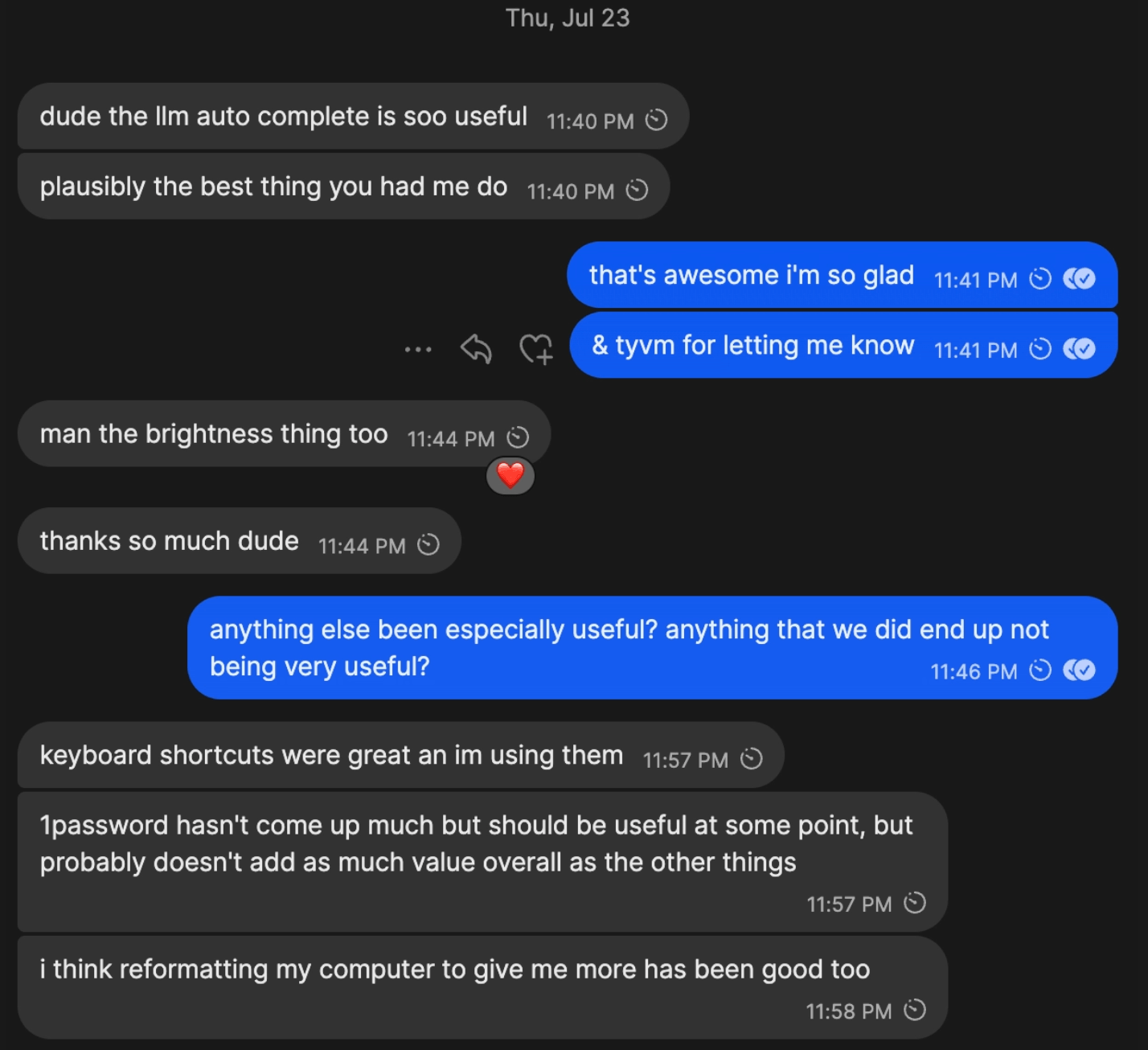
- Vivid. Try making your computer all the way bright. That’s helpful for e.g. using your laptop outside, but it’s sometimes still just not bright enough. Vivid just adds a few extra brightness levels above the normal ones.
- MacWhisper is an app that transcribes recordings. You give it a recording, it gives you a transcription. Straightforward and good.
Easy
- Any window manager (with keyboard shortcuts). I use & like Magnet. Ask an LLM for other suggestions, but note that one window manager isn’t going to be much better than another.
- Sync your contacts on your phone with your computer, so that you know who’s messaging you.
- Superwhisper is an app that, with the push of a button, lets you talk into your computer and it’ll write down what you said. It does a bit of magic airbrushing in the background e.g. removing “umms.” I personally don’t find it terribly valuable, but many folks I know do (especially those who spend more of their time writing).
CMD+,(comma) in any app will open the settings pane of that app. Try it out in the app you’re currently reading this on! Or any other app! It nearly always works!- Any spotlight search tool that replaces the built-in spotlight search. I use & like Alfred, but Raycast also has one. Ask an LLM for other suggestions; I’m not sure how much better some are than others, but ~any of them are a huge improvement over the built-in macOS spotlight search.
CMD+SHIFT+CTRL+4takes an ephemeral screenshot and stores it only in your clipboard. Try it out, then go to a notes app or something and paste it in.- Cotypist. It’s autocomplete, but with LLMs. It’s Cursor Tab, but with prose. It’s “soo useful” and “plausibly the best thing you had me do,” says my friend WSD.
- Text manipulation:
OPTION+→,←,↑, or↓= Move the cursor to the right/left side of the current word, or to the top/bottom of the current paragraph. This also works withSHIFTto highlight text.OPT+DELETE= deletes the current wordCMD+→,←,↑, or↓= Move the cursor to the right/left side of the current line, or to the top/bottom of the current page. This also works withSHIFTto highlight text.CMD+DELETE= deletes the current line
Medium
- Remap CAPSLOCK to CTRL (or whatever, but remap it to something useful). I use Karabiner Elements, which is a pretty powerful keyboard mapping tool — it requires some simple scripting, but super easy to vibe-code it. (Alternatively, you could probably just ask a coding agent to do this for you directly.)
- Set up hotkeys to open frequently used apps, like Chrome, Claude/ChatGPT, Notion, your calendar app, Messages, WhatsApp, etc. This is valuable not only for opening apps, but for very quickly switching back-and-forth between apps. I use Karabiner Elements, which is a pretty powerful keyboard mapping tool — it requires some simple scripting, but super easy to vibe-code it. (Alternatively, you could probably just ask a coding agent to do this for you directly.)
- Alfred, for soooooo many things.
CMD+TABis lets you quickly switch between open apps. It takes some time to get used to using it effectively, but once you do, it can be super useful (especially before you set up custom hotkeys to open frequently used apps).- Any clipboard manager. They let you just see & use all of the things you copied — so you can copy multiple things, then paste them each as you please. I use & like Alfred’s built-in clipboard manager, but Raycast also has one. Ask an LLM for other suggestions, but no clipboard manager is going to be much better than another (but any of them will be vastly better than none of them).
- Any password manager. I use & like 1Password, but I’ve heard good things about LastPass and Bitwarden. Ask an LLM for other suggestions, but no clipboard manager is going to be much better than another (but any of them will be vastly better than none of them), unless you have unusual security concerns.
Hard
- Vimium
- Homerow
- Set up sequential hotkeys for frequently used actions that have decision trees. For example, I set one sequential hotkey up for setting timers of different lengths: if I hit CTRL + Q followed quickly by any number 1-10 or on increments of 5 up to 60, a timer is instantly set for that duration. Pretty useful for e.g. timeboxing discussions during meetings.
To-try
Here are a few items I haven’t tried yet:
- https://www.macbartender.com/ [edit: I’ve since just had Fable do this, which took ~10 minutes]
- various apps on https://setapp.com/
- https://pandoc.org/
Caveats
My work environment might look different from yours
Much of the work that my Mac is optimized for looks like “make this work EXTREMELY FAST for extremely high-pressure environments, where wasting a few moments is actually quite costly” — or alternatively, for environments where wasting a few moments is pretty costly for my working memory.
Examples:
- If i’m running a meeting, taking 3-4 seconds to set a 1 minute timer is a lot worse than taking 1/4 of a second
- If I’m coding, setting a timer for when I should take a break could involve switching to a new app, cutting off context for 3-4 seconds, then trying to swtich back — but with a hotkey, i can do this without leaving my IDE, and in 1/4 of a second.
Money
Some of these cost money. E.g. Alfred premium is $40, Superhuman is $35/month, 1Password is $2/month, etc. I’m in a fortunate position to be generally happy to trade that size of money for speculative gains in effectiveness, but you might not be.
Programming skill
Some of these require some skill in programming. I really don’t have much skill in programming at all, but you might have even less (or be less interested in getting better). Though I think this is basically no longer true given how good LLMs are at vibe-coding/helping you through the process.
Security
Some of these might have security vulnerabilities that I’m not aware of. None are purely malware that I know of, but we may have very different bars for what software we’re willing to install into our computers.