Sequential hotkeys
[unusually half-finished WIP]
0. TLDR
- Regular-old hotkeys are great, primarily because they remove load on your working memory at key moments.
- But they still have some problems: e.g. you can get them mixed up, and they often don’t work well for more-complex actions (e.g. “set a timer for a particular duration”).
- However, you can set up hotkeys that you press in sequence — e.g. if I press then release CTRL+Q, pressing any number on my keyboard will set a timer for that duration; if I press then release CTRL+I, then pressing F will open Signal, and pressing J will open WhatsApp.
- Sequential hotkeys solve many of the problems associated with traditional hotkey setups, and allow quite a lot of cool workflows.
I. Hotkeys are great
This xkcd is pretty funny:
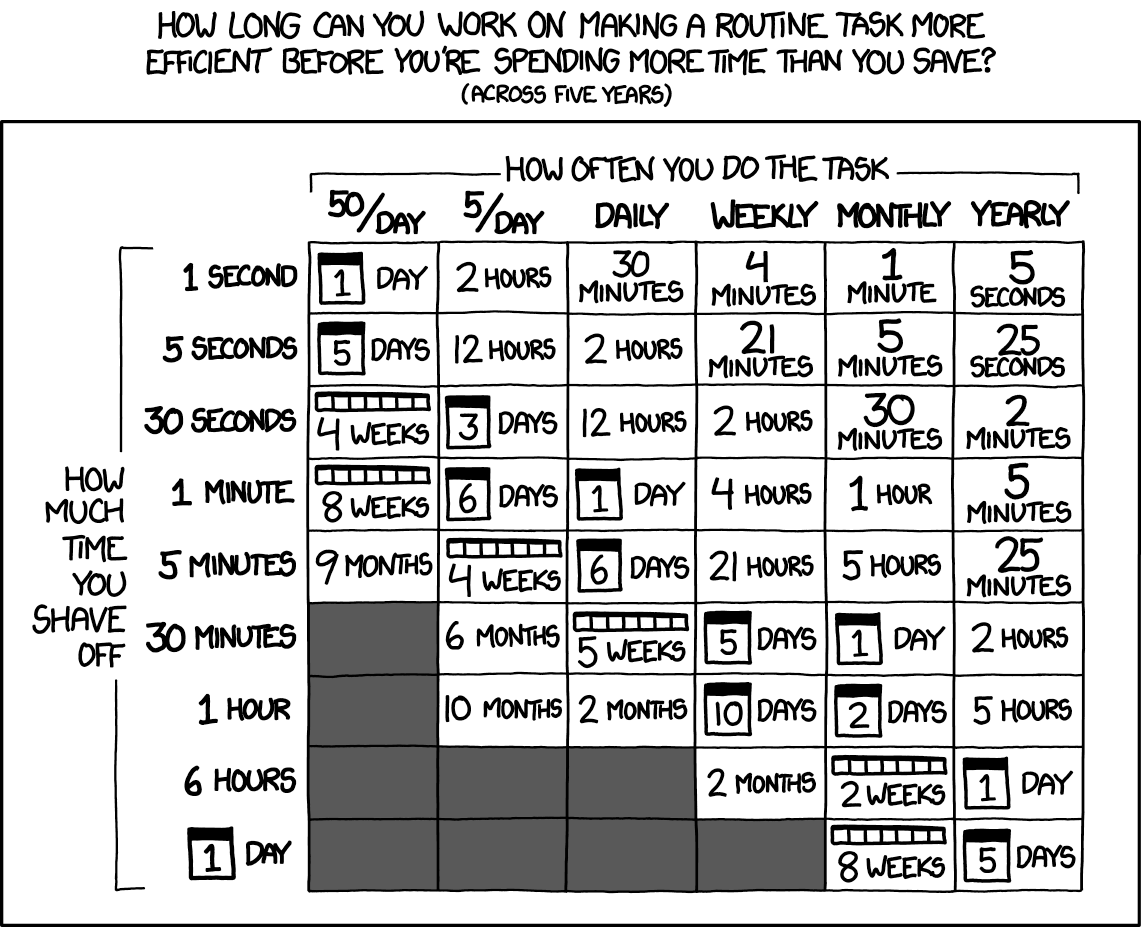
Hotkeys are a great example of this — because although they can take 5-10 minutes to set up and another 10-15 minutes distributed over a few days to get comfortable, it’ll probably save you a whole ~30 seconds over the course of a year.
However:
-
When paths become easier to take, you take them more easily. From dynomight:
For years, I thought I should vacuum. But since vacuuming wasn’t fun, I only rarely did it after making a desperate effort and mostly my vacuum served as a monument to what a failed and pathetic human being I was.
And then, on one beautiful day, I was borrowing the apartment of a friend who was out of town. I thought I should clean before I left and discovered she had a cordless, battery-powered vacuum. As I switched it on, clouds parted and trumpets sang from the sky. It wasn’t quite as powerful as a normal vacuum, but it was painless. After I bought one, I was suddenly able to vacuum whenever I wanted, like a real person, so easily that the entire issue lost salience when I was in the mood for self-loathing.
Lesson: Sometimes you want to make the intended path (vacuuming) better rather than changing anything about the desire path (not vacuuming).
Setting up hotkeys also makes it easier to do those things — which can make it more likely you do the actions associated with those hotkeys.
II. Problems with regular hotkeys
- You get them mixed up between apps (e.g. setting up CTRL + C → opens Chrome, but then this means I can’t escape when programming in Python)
- You’re pretty limited to the number of keys. Once you map CTRL + {A,B,C, … X,Y,Z} onto various actions, (a) that’s basically it, there’s not too many more hotkeys you have access to. This is only really a problem for power-users of hotkeys, but, like, hotkeys are great! More people should be power users!
- Example: I’ve remapped most of the easy-to-reach letters pressed after CTRL to open the ~15 apps that I most frequently use (& endorse using). Some problems I now have:
- I ran out of keys, but I have more apps!\
- Example: I’ve remapped most of the easy-to-reach letters pressed after CTRL to open the ~15 apps that I most frequently use (& endorse using). Some problems I now have:
- They’re really very basic in what they can do, since you’re giving the other side of the hotkey (the computer) extremely little information
III. Sequential hotkeys fix those problems
- You can just set up sequential hotkeys
IV. How-to
Mac:
-
Download Karabiner Elements — free, open source).
-
(Optional, strongly encouraged) Remap ‘caps lock’ to ‘CTRL’
Steps (click the triangle on the left to expand)
-
Once you’ve downloaded/installed Karabiner, open it up.
-
Click ‘complex modifications’ on the left-hand side.
-
Click ‘Add your own rule’ on the top-middle.
-
Paste the code below in:
Code (click the triangle on the left to expand)
{ "description": "Press twice caps_lock to activate caps_lock & otherwise held_down and use as CTRL", "manipulators": [ { "conditions": [ { "name": "caps_lock pressed", "type": "variable_if", "value": 1 } ], "from": { "key_code": "caps_lock", "modifiers": { "optional": ["any"] } }, "to": [{ "key_code": "caps_lock" }], "type": "basic" }, { "from": { "key_code": "caps_lock", "modifiers": { "optional": ["any"] } }, "parameters": { "basic.to_if_held_down_threshold_milliseconds": 0 }, "to": [ { "set_variable": { "name": "caps_lock pressed", "value": 1 } } ], "to_delayed_action": { "to_if_canceled": [ { "set_variable": { "name": "caps_lock pressed", "value": 0 } } ], "to_if_invoked": [ { "set_variable": { "name": "caps_lock pressed", "value": 0 } } ] }, "to_if_held_down": [{ "key_code": "left_control" }], "type": "basic" } ] } -
Click ‘Save’ on the top-right.
-
Make sure that the rule is enabled — the below image should be flipped blue, not gray:

-
-
Remap ‘CTRL + F’ to your most frequently used app. You can prompt Claude/GPT:
i’m using karabiner elements. make a custom json script that will remap CTRL + F to open *insert your most-commonly-used-app here* -
Fancy stuff — sequential hotkeys:
Start out with the below code for sequential hotkeys — this will have the following flow:
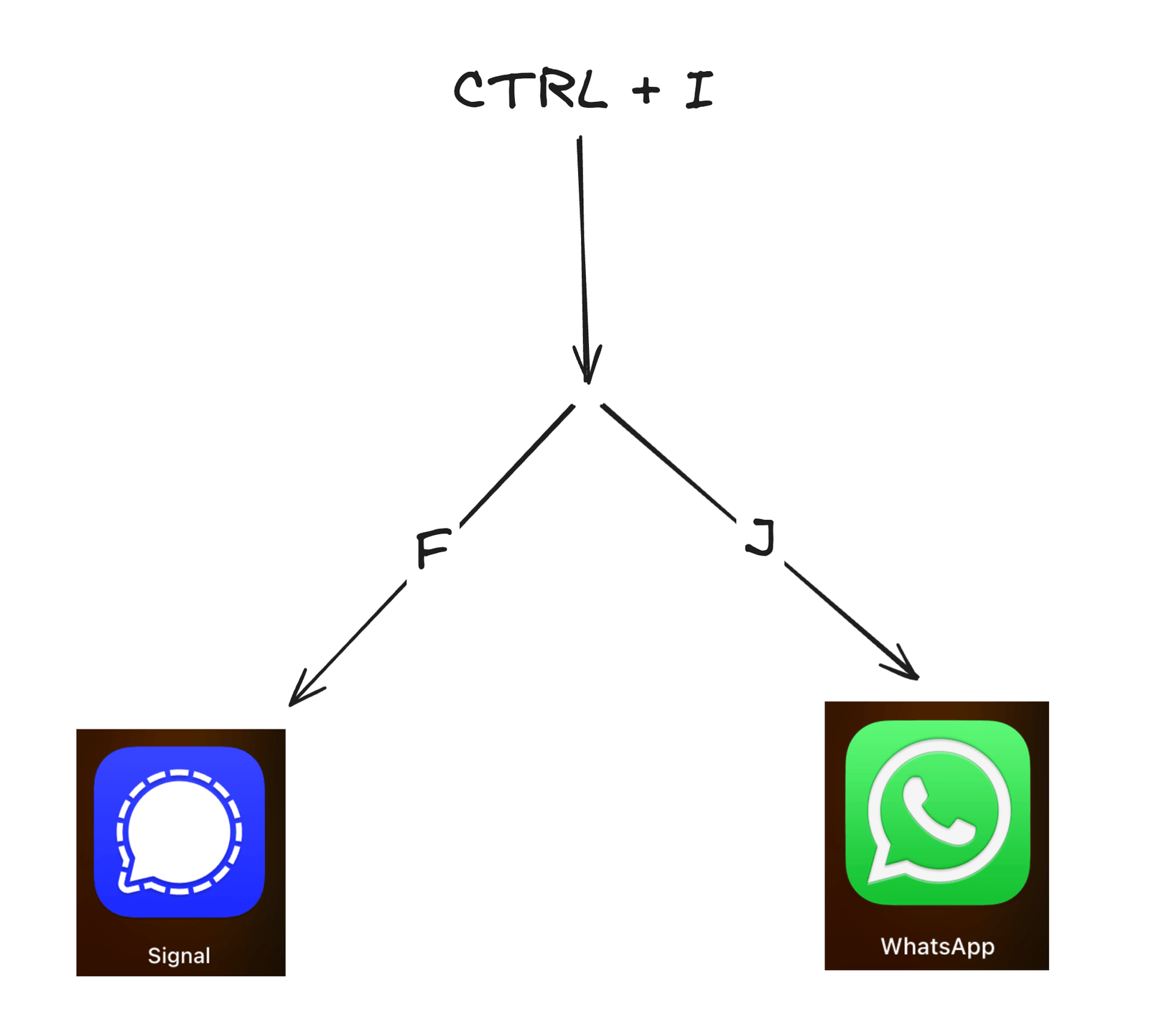
When you press CTRL + I, then {F, J}, you’ll open {Signal, WhatsApp} accordingly. I might eventually set this up such that CTRL + I, followed by a letter, will open up a given messaging app (iMessage, Messenger, etc.). You could do the same for note-taking apps, or for any other category of app. Code (click the triangle on the left to expand)
{
    "description": "Sequential Chording: CTRL+I Messaging App Launcher",
    "manipulators": [
        {
            "from": {
                "key_code": "i",
                "modifiers": { "mandatory": ["control"] }
            },
            "parameters": { "basic.to_delayed_action_delay_milliseconds": 3000 },
            "to": [
                {
                    "set_variable": {
                        "name": "app_launcher_mode",
                        "value": 1
                    }
                }
            ],
            "type": "basic"
        },
        {
            "conditions": [
                {
                    "name": "app_launcher_mode",
                    "type": "variable_if",
                    "value": 1
                }
            ],
            "from": { "key_code": "f" },
            "to": [
                { "shell_command": "open /Applications/Signal.app" },
                {
                    "set_variable": {
                        "name": "app_launcher_mode",
                        "value": 0
                    }
                }
            ],
            "type": "basic"
        },
        {
            "conditions": [
                {
                    "name": "app_launcher_mode",
                    "type": "variable_if",
                    "value": 1
                }
            ],
            "from": { "key_code": "j" },
            "to": [
                { "shell_command": "open /Applications/WhatsApp.localized/WhatsApp.app" },
                {
                    "set_variable": {
                        "name": "app_launcher_mode",
                        "value": 0
                    }
                }
            ],
            "type": "basic"
        }
    ]
}
Windows:
- Buy a Mac.
- See list above.
(Joking. I don’t know how to set this up personally, but Reddit says use AutoHotKey).